

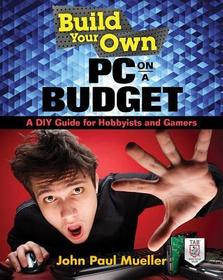
Build Your Own PC on a Budget: A DIY Guide for Hobbyists and Gamers
Sorozatcím: ELECTRONICS;
-
10% KEDVEZMÉNY?
- A kedvezmény csak az 'Értesítés a kedvenc témákról' hírlevelünk címzettjeinek rendeléseire érvényes.
- Kiadói listaár GBP 23.99
-
10 831 Ft (10 315 Ft + 5% áfa)
Az ár azért becsült, mert a rendelés pillanatában nem lehet pontosan tudni, hogy a beérkezéskor milyen lesz a forint árfolyama az adott termék eredeti devizájához képest. Ha a forint romlana, kissé többet, ha javulna, kissé kevesebbet kell majd fizetnie.
- Kedvezmény(ek) 10% (kb. 1 083 Ft)
- Kedvezményes ár 9 748 Ft (9 284 Ft + 5% áfa)
Iratkozzon fel most és részesüljön kedvezőbb árainkból!
Feliratkozom
10 831 Ft

Beszerezhetőség
Megjelenése törölve vagy kivonva a forgalomból. Sajnos nem rendelhető.
Why don't you give exact delivery time?
A beszerzés időigényét az eddigi tapasztalatokra alapozva adjuk meg. Azért becsült, mert a terméket külföldről hozzuk be, így a kiadó kiszolgálásának pillanatnyi gyorsaságától is függ. A megadottnál gyorsabb és lassabb szállítás is elképzelhető, de mindent megteszünk, hogy Ön a lehető leghamarabb jusson hozzá a termékhez.
A termék adatai:
- Kiadó McGraw-Hill Education TAB
- Megjelenés dátuma 2015. november 16.
- ISBN 9780071842372
- Kötéstípus Puhakötés
- Terjedelem320 oldal
- Méret 233x188x17 mm
- Súly 557 g
- Nyelv angol 0
Kategóriák
Hosszú leírás:
Publisher's Note: Products purchased from Third Party sellers are not guaranteed by the publisher for quality, authenticity, or access to any online entitlements included with the product.
Design and assemble an inexpensive yet fast and reliable PC
Construct the PC of your dreams using the practical information contained in this hands-on guide. Build Your Own PC on a Budget explains, step-by-step, how to put together a customized computer that is affordable, stable, and powerful. Discover how to choose the parts that fit your needs, safely connect and test components, add video and peripherals, install an operating system, connect to the Internet, and go wireless. Security, maintenance, and software updates are fully covered in this DIY book.
- Look inside a PC and understand how each component works
- Decide what you want from your PC and develop a design plan
- Create a cost-effective parts list and select the best vendors
- Wire up the motherboard, processor, and add-on boards
- Connect storage devices, display adapters, and peripherals
- Securely connect to LANs, WiFi networks, and the Internet
- Install your operating system, device drivers, and applications
- Maintain your PC, update software, and back up your data
Publisher's Note: Products purchased from Third Party sellers are not guaranteed by the publisher for quality, authenticity, or access to any online entitlements included with the product.
Design and assemble an inexpensive yet fast and reliable PC
Construct the PC of your dreams using the practical information contained in this hands-on guide. Build Your Own PC on a Budget explains, step-by-step, how to put together a customized computer that is affordable, stable, and powerful. Discover how to choose the parts that fit your needs, safely connect and test components, add video and peripherals, install an operating system, connect to the Internet, and go wireless. Security, maintenance, and software updates are fully covered in this DIY book.
- Look inside a PC and understand how each component works
- Decide what you want from your PC and develop a design plan
- Create a cost-effective parts list and select the best vendors
- Wire up the motherboard, processor, and add-on boards
- Connect storage devices, display adapters, and peripherals
- Securely connect to LANs, WiFi networks, and the Internet
- Install your operating system, device drivers, and applications
- Maintain your PC, update software, and back up your data
Tartalomjegyzék:
Introduction
Part I—Developing a PC Plan
1 Defining What You Want
Considering Why Off-the-Shelf Systems Aren’t Appealing
Dealing with Standard Off-the-Shelf Systems
Dealing with Customizable Off-the-Shelf Systems
Employing the Bare-Bones Kits
Writing Down Goals for Your System
Creating a Budget
Identifying the Parts You Have Now
Defining What Reusable Means
Obtaining Documentation for Existing Parts
Ensuring the Part Is Actually Usable
2 Introducing the Major Parts
Opening the Case
Understanding the Role of the Motherboard
Providing Power to the System
Considering the Add-on Boards
Working with Display Adapters
Hearing with Sound Cards
Providing Interfaces Using Host Adapters
Controlling Access Using Security Device Cards
Considering Other Add-on Boards
Deciding on Storage Devices
Connecting with Cables
Keeping Things Cool
Focusing on External Connectivity
Dealing with Network Cards
Dealing with Port Cards
3 Considering the Vendors
Getting on Vendor Sites
Performing Quick Comparisons
Obtaining Part Information in the Correct Order
Performing Apples-to-Apples Comparisons
Understanding the Value of Testing
Performing Comparisons Efficiently
Finding Reliable Reviews
Getting Good Professional Reviews
Understanding the Value of Points
Using the Good Review Checklist
Understanding the Compatibility Pitfalls
Considering Problems with Standards Adherence
Considering Problems with Feature Extensions
Working Through the Odd Bad Part
Dealing with Compatibility Issues
Reading Between the Lines
4 Getting What You Need
Creating and Verifying a Purchase List
Dealing with Specifics
Considering Reputation
Performing Comparison Shopping
Verifying the Warranty
Checking the Return Policy
Making the Purchases
Allowing Scripts
Getting Your Information Together
Completing Your Purchase
Verifying the Package Contents
Checking the Boxes
Checking the Individual Parts Box Content
Making a List of Extras
Getting the Extras You Need
Ensuring the Documentation Is Complete
Inventorying the Required Tools
Obtaining a Computer Toolkit
Getting Individual Tools
Setting Up a Work Area
Selecting a Worktable
Ensuring You Have Enough Light
Checking the Outlets
Keeping Your Work Area Clean
Part II—Building the Hardware
5 Adding RAM and Processor
Understanding Static Electricity
Verifying the Processor and RAM Positions
Adding Cooling to the Processor
Understanding the Need for Thermal Paste
Working with Standard Processor Cooling
Understanding Liquid Processor Cooling
Inserting the Processor
Orienting the Processor
Locking the Processor Down
Installing the RAM
Looking at the RAM Sockets
Inserting and Securing the RAM
6 Installing the Motherboard
Configuring the Case
Installing a Power Supply
Identifying the Power Plugs and Sockets
Setting Up the Motherboard
Ensuring the Motherboard Is in Place
Installing the Standoffs
Positioning the Motherboard
Screwing the Motherboard in Place
Connecting the Case Features to the Motherboard
Identifying the Pins on the Motherboard
Connecting the Case Plugs
Testing Your Initial Setup
7 Providing Video
Understanding the Video Basics
Understanding How Things Work
Using a Special Motherboard Socket
Finding the Special Power Supply Connection
Viewing the Back of the Card
Installing the Video Card Correctly
Connecting Any Required Cables
Considering CrossFire and SLI Configuration Needs
Configuring the Motherboard
Using the Correct Slot
Making the Required Power Supply Connections
Making Connections Between Cards
Considering TV Tuner Configuration Needs
Connecting Devices
Performing a Quick Video Test
8 Mounting Permanent Storage
Understanding Permanent Storage Basics
Defining the Form Factors
Considering the Power Cable
Considering the Data Cable
Working with Drive Size Adapters
Installing a SATA Drive
Installing an Optical Drive
Working with Solid-State Drives
Using USB Storage
Working with External Drives
Considering Other Permanent Storage Options
Considering the SCSI Option
Understanding RAID
9 Attaching Auxiliary Devices
Choosing Keyboard and Other Input Devices Carefully
Connecting the Keyboard
Considering the Advantages of Wired Keyboards
Working with Wired Keyboards
Working with Wireless Keyboards
Connecting the Mouse or Trackball
Considering the Trackball Difference
Working with a Wired Mouse or Trackball
Working with a Wireless Mouse or Trackball
Testing the Basic Setup
Adding a Printer
Working with Webcams
Providing Other Device Connections
Part III—Considering Networks
10 Installing a LAN
Understanding LAN Basics
Considering the LAN Hardware
Creating the Physical Connection
Considering the LAN Software
Seeing the Other Connections
Configuring the Motherboard LAN
Dealing with Jumpers
Performing the System Configuration
Considering Multiple-LAN Motherboards
Installing a Separate LAN Card
Using External LAN Solutions
Understanding WLAN Essentials
Defining the WLAN
Delving into Wi-Fi
Delving into WiMAX
Considering LAN Security
Developing a Security Plan
Creating Useful Passwords
Defining the Hazards of WLAN
11 Connecting to the Internet
Configuring Multiple LANs
Considering the Need for a Router
Connecting to the LANs
Determining Your Internet Connection Type
Connecting a MODEM
Defining the Purpose of a MODEM
Obtaining the Correct MODEM
Configuring the MODEM
Connecting to the MODEM
Using a Test System to Check the Connection
Using Alternative Connectivity Options
Considering Internet Security
Defining the Internet Difference
Locking Your System Down
Locking the Browser Down
Relying on Firewalls
Using Other Security Measures
12 Accessing Wireless Devices
Understanding the Common Wireless Standards
Ensuring You Have the Correct Wireless Support
Configuring Common Computer Devices
Configuring Alternative Devices
Considering Wireless Device Security
Defining the Types of Intrusions
Protecting the Communication Channel
Protecting the Network
Understanding the Role of Wireless Access Points
Part IV—Installing the Software
13 Installing the Operating System
Choosing an Operating System
Defining What You Want to Do
Considering Version Issues
Considering Longevity
Exploring Alternative Solutions
Obtaining the Vendor Installation Instructions
Locating the Windows Instructions
Choosing a Linux Flavor
Hacking OS X
Ensuring You Have All the Details
Getting a Licensed Copy
Obtaining Manuals
Performing Backups
Downloading Device Drivers
Performing the Installation
14 Accessing the Devices
Understanding the Operating System to Device Connection
Considering the Use of Low-Level Resources
Avoiding Device Conflicts
Circumventing Application Conflicts
Relying on Operating System Drivers
Defining the Advantages of Automatic Access
Considering the Missing Device
Obtaining and Using Device Vendor Drivers
Considering the Advantages of Vendor Drivers
Keeping Vendor Drivers Updated
Installing the Device Drivers
Documenting Driver Settings
Performing a System Backup
Removing Existing Drivers
Performing Required System Reboots
Installing the New Driver
Overcoming Driver-Specific Problems
Ensuring Device Connectivity
Disabling the Driver Temporarily
Verifying Driver Settings
Considering the Device Driver Mismatch
15 Choosing Applications
Matching Applications to Your System
Verifying the Hardware Requirements
Validating the Platform Requirements
Checking Version Information
Considering Connectivity Requirements
Obtaining Application Reviews
Installing the Application
Avoiding Installation Complexities
Using an Installation Program
Unpacking the Application
Working with Web-Based Applications
Correcting Application Installation Problems
Dealing with Mismatches
Finding Missing Components
Getting Peer Help
Resetting an Installation
Removing Errant and Unused Applications
Part V—Performing Maintenance
16 Maintaining the Hardware
Cleaning the Outside
Vacuuming the Louvers and Cables
Wiping the Case
Checking for Damage
Cleaning the Inside
Opening the Case
Spraying the Dust Out
Cleaning the Filters
Inspecting Your Hardware
Checking the Add-on Boards
Checking the Storage Devices
Checking the Cables
Keeping Things Cool
Spinning the Fan Blades
Performing a Powered Test
Obtaining Spare Parts
Creating a Parts List
Shopping for Older Parts
Getting Updated Parts
Maintaining Essential Spares
Creating a Maintenance Schedule
17 Managing the Software
Performing Required Updates
Setting Software to Check Updates Automatically
Validating the Update
Downloading and Installing the Update
Testing the Update
Keeping Things Secure
Starting with Passwords
Installing the Correct Background Applications
Applying Security Updates Quickly
Reading Those Installation and Update Screens
Dealing with System Slowdowns
Removing Unused Applications
Cleaning the Hard Drive
Cleaning Up the Operating System
Keeping Data Safe
Performing Backups
Keeping Backups Off-Site
Encrypting Data as Needed
Overcoming Disasters
Checking Drivers, Servi
ces, and Agents
Testing Errant Hardware
Restoring a Backup
18 Preparing for Updates
Maintaining a Wish List
Building with Expansion in Mind
Developing a Processor Plan
Upgrading Your RAM
Upgrading a Display Adapter
Adding a Display Adapter
Increasing Your Storage
Obtaining Special Add-ons
Considering the Role of Software
Obtaining and Installing Hardware Updates
Knowing When to Retire Your Old System
Index

